¶ General
If you want to integrate our Export and Subscription API directly in your system have to create a client id with secret to be able to authorize request to TecCom Business Cloud. Only assigned organizations to this client are allowed for requests.
Restrictions:
- To manage this client you have to be an administrator for this client.
- To add organizations/update client organization settings you have to be TecCom organization administrator
Click to jump to TecCom Businss Cloud Export and Subscription API
Template API can not request with client authentication.
¶ Administration
For this login to TecCom Portal with an administration user. Choose your organization which you want to connect and select in the menu Administration > TecCom Business Cloud.
¶ Create a client and get the secret
When you are an admin for your selected organization and the organization is not already assigned to a client, you we will see this page with a button to create a client.

For creating a client click on the Create client button.
Please Note: If one of your assigned organization is already assigned to a client you can't create a new client.
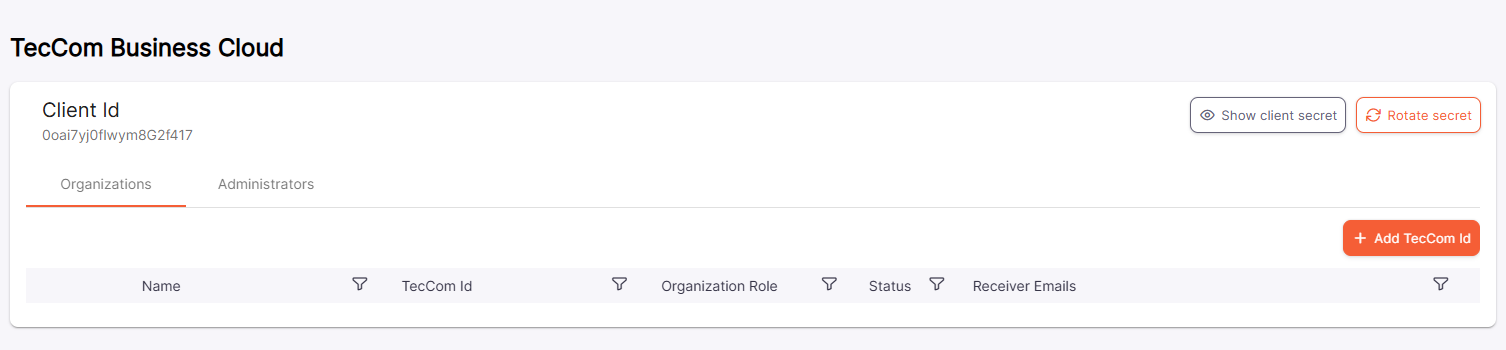
After the request was successful, you will see the client id and your user will be assigned to this client as an administrator.
¶ Client secret
Clicking on Show client secret button you can retrieve the secret for your future sending data requests. Also with clicking on Rotate secret button you can refresh the secret for security reason.
¶ Add organization
Now you can add all to your assigned supplier organizations, where you have** TecCom organization administration rights**, to this client. After adding organizations you are allowed to send data with this client.
Click on the + Add TecCom Id button on the Organization tab. A window will be opened where you can select your supplier organization for which you have organization admin rights.
Select your buyer orgnization, enable or disable the organization for requests and also add email addresses for getting notifications for failed Exports (coming soon) with clicking on the + Add email button.
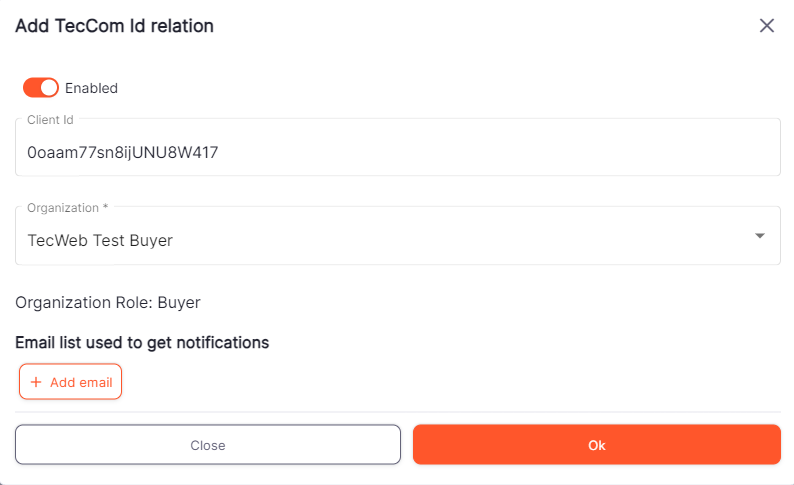
After clicking on the Ok button the organization will be added to your client and you will go back to the overview where you can see you added organization.
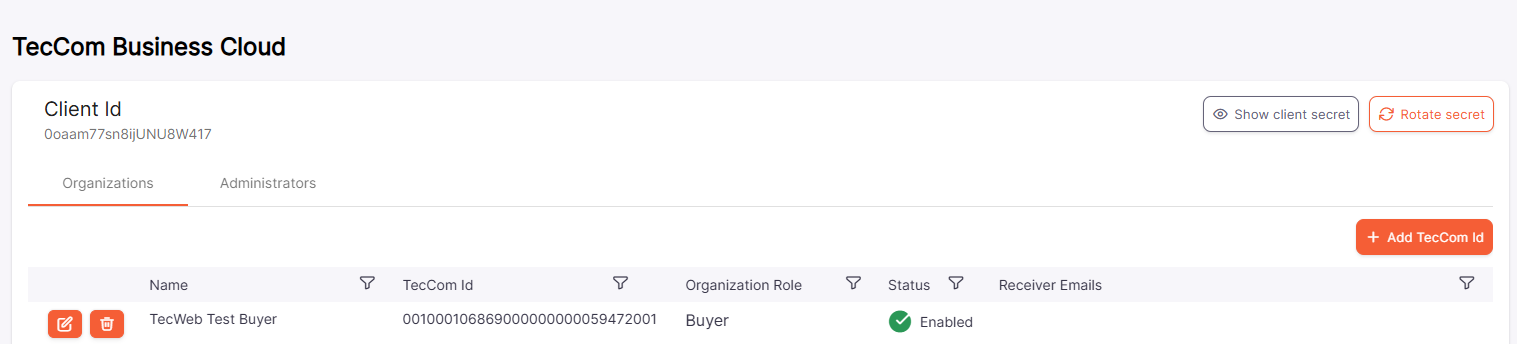
This setting can be changed when clicking on the edit button (pencil) in the organization list.
Here you can also delete the relation from your client by clicking on the delete button.
¶ Add client administrators
You can also add more administrators to this client. This client administrator can also retrieve the secret or rotate the secret, add, edit or remove organizations (with TecCom organization administration rights) or add more client administrators.
Choose Administrators tab and click on + Add user button. A window will be opened where you can add the user email address.
Add the email address in the search user by email field and click on the Search button. The email will now be verified. If the user is found you will see the first and last name, otherwise you get a user not found message.
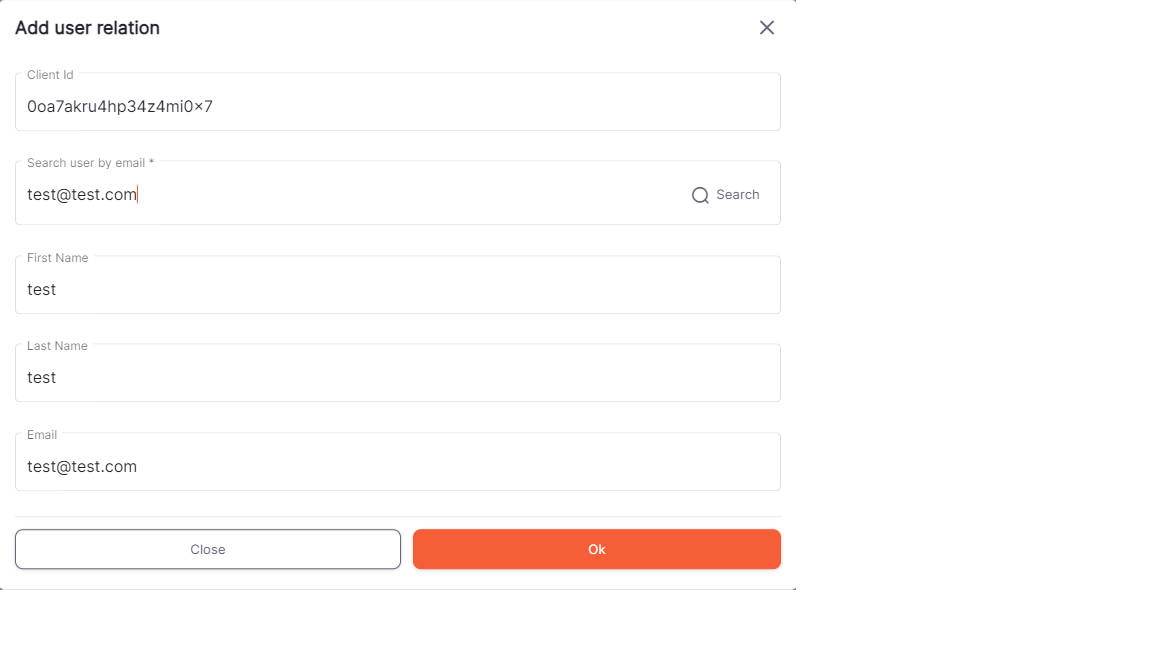
To add the user click the ok button, the window will be closed and the added user appears in the list of administrators.
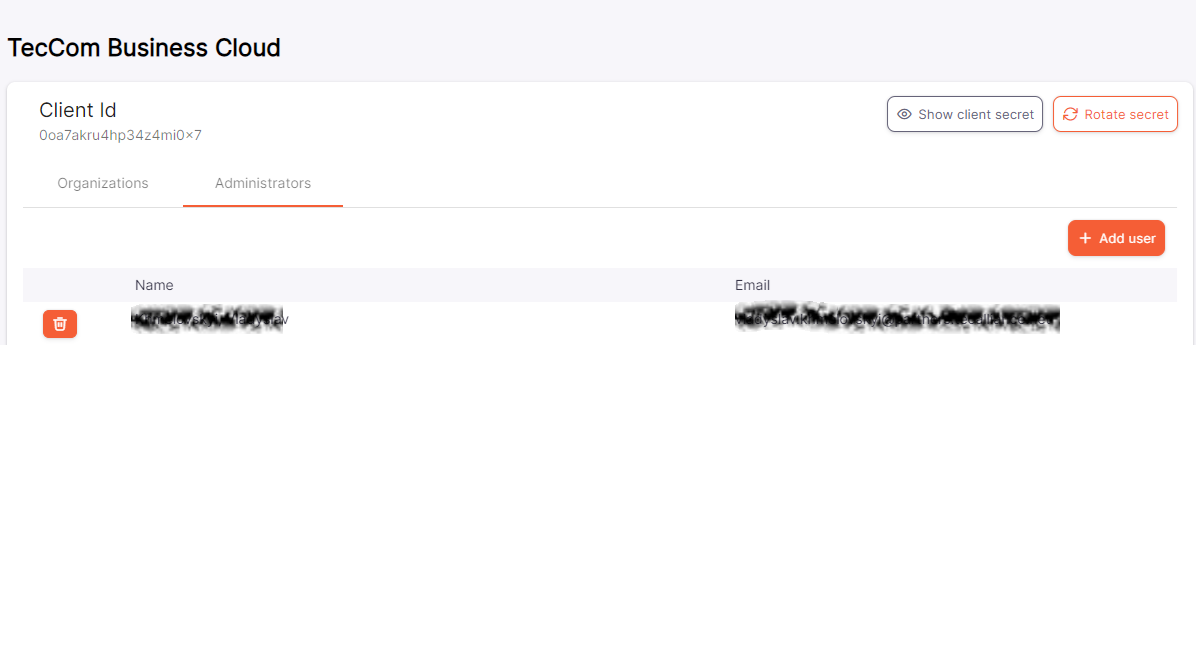
At least one administrator must be assigned to a client.
If you are the last administrator for a client, you have to add another administrator to this client before you can remove your user from this relation.